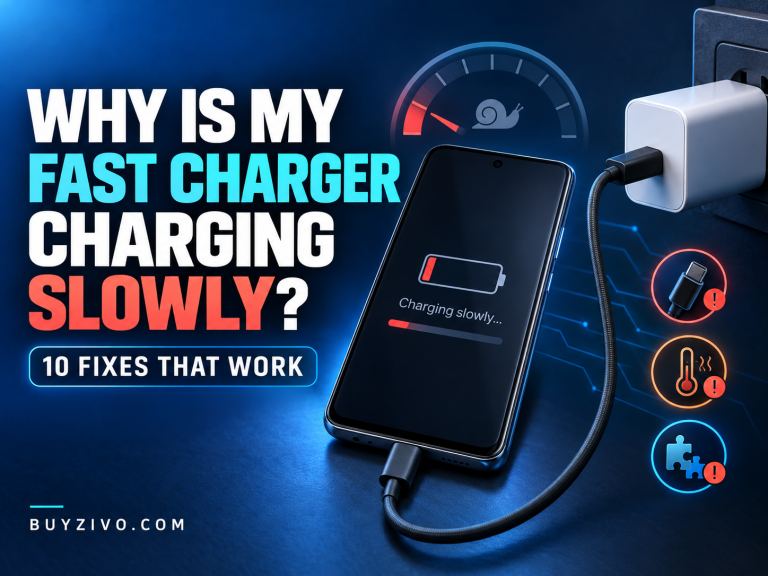
A fast charger charges slowly because one part of the charging chain cannot deliver or accept the expected power. The most common causes are an incompatible charging protocol, an under-rated or damaged cable, heat, using the phone while it charges, a dirty port, or battery-protection software.
Start by plugging the charger directly into a wall outlet, letting the phone cool down, locking the screen, and testing a known-good cable. If that does not help, check whether the charger supports the standard your phone needs—such as USB Power Delivery (USB PD) or Programmable Power Supply (PPS).
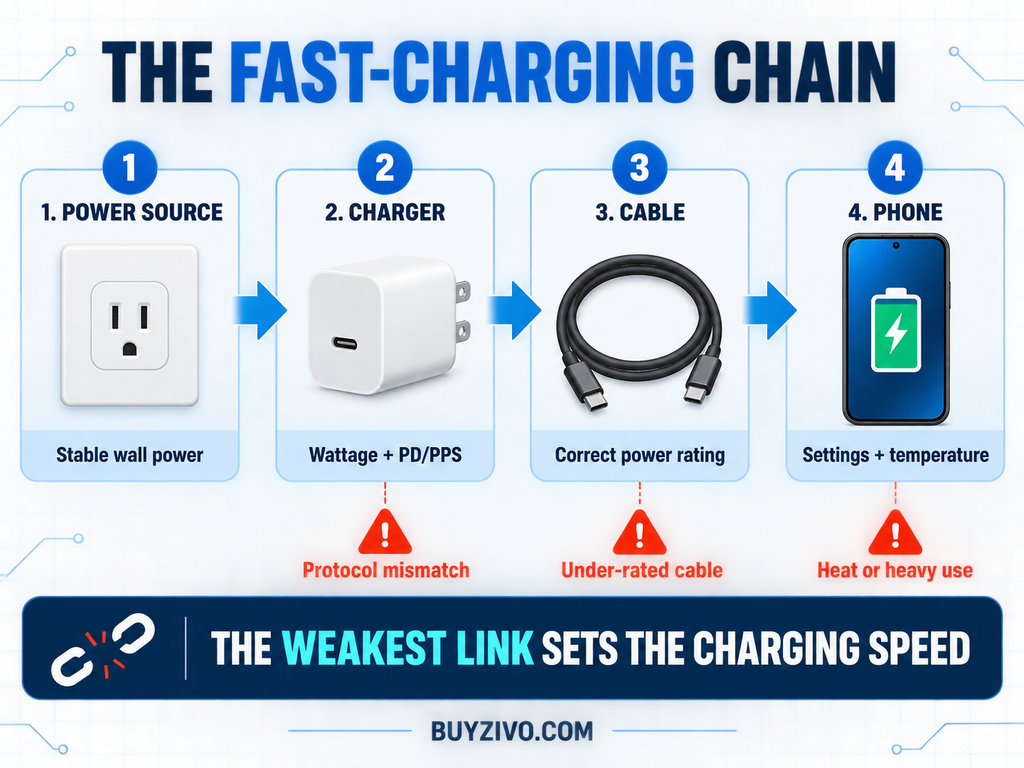
Do not judge charging speed only by the wattage printed on the adapter. Fast charging works only when the phone, charger, cable, and charging conditions all support it.
Quick Diagnosis: Check These First
Work through this list in order:
- Plug the charger directly into a working wall outlet.
- Lock the phone and stop gaming, navigation, video calls, or other demanding tasks.
- Let a hot or very cold phone return to a normal temperature.
- Try a short, known-good USB-C cable rated for the power you need.
- Check the charging port for lint, moisture, corrosion, or a loose connection.
- Confirm that the charger supports your phone’s required protocol and power profile.
- Check fast-charging, battery-protection, and adaptive-charging settings.
- Test the charger and cable separately with compatible equipment.
If the phone charges quickly at a low battery level but slows substantially near full, that may be normal rather than a fault.
1. The Charger and Phone Are Not Using the Same Fast-Charging Standard
The wattage on a charger is its maximum output under supported conditions—not a promise that every connected phone will draw that amount.
USB PD lets a compatible charger and device negotiate an appropriate power level over USB-C. PPS adds finer voltage and current adjustment and is important for achieving the intended charging performance on some phones.
If the phone requests a power profile the charger does not provide, the charger and phone can fall back to a slower common charging mode.
This explains why a 65W laptop charger may charge one phone rapidly but another only at a basic rate. The adapter has enough total wattage, yet it may lack the protocol or voltage-and-current profile the second phone expects.
Google says compatible Pixel phones can use its USB-C fast chargers, PPS adapters rated at 30W or more, or other USB PD adapters rated at 15W or more. The best choice varies by Pixel model.
Apple specifies a suitable USB-C adapter supporting USB PD for fast charging compatible iPhones. Samsung also distinguishes between ordinary charging and its supported fast-charging modes.
What to do: Check the phone manufacturer’s official charging requirements. Match the required charging protocol first, then choose enough wattage.
If you are shopping for a replacement, see Best Wireless Chargers for iPhone and Android or Best USB-C Chargers.
2. The Cable Is Limiting Power
A USB-C connector tells you the plug shape, not the cable’s power capability or condition. Two cables that look nearly identical may support different current levels, data rates, and charging features.
For higher-power USB-C charging, the cable must be rated appropriately. USB-IF documentation distinguishes between 3A and 5A cables. USB PD operation above 3A depends on an electronically marked cable that can identify its capabilities.
A worn, excessively long, poorly made, or under-rated cable may also create resistance or an unstable connection, causing charging to slow or repeatedly reconnect.
Signs of a cable problem include:
- Charging speed changing when the cable moves
- The phone repeatedly connecting and disconnecting
- One connector becoming unusually hot
- Fast charging working with another cable
- The same cable failing on another compatible device
What to do: Test with a short cable from a reputable manufacturer that clearly states its supported wattage.
For charging above 60W, verify the exact cable requirement instead of assuming any USB-C cable will work. See [Internal Link: USB-C Cable Buying Guide] for help reading cable ratings.
Stop using a cable if:
- Its insulation is split
- A connector is bent or loose
- Contacts are discolored
- It becomes abnormally hot
Need a Reliable USB-C Cable?
Choose a cable that clearly supports your required charging wattage and USB Power Delivery.
3. The Phone Is Too Hot or Too Cold
Temperature control is one of the most common reasons a charger feels slower than expected. Phones reduce charging power to protect the battery when their internal temperature moves outside the preferred range.
Apple states that fast charging may not work in conditions that are too hot or too cold. iPhone software may also limit charging above 80% when the temperature is elevated.
Samsung similarly says charging can be limited when the device or surrounding environment is too hot or cold.
Google’s guidance for slow wireless charging tells users to cool the phone, keep it away from direct sunlight, and keep the screen dark.
Heat can come from:
- A hot room
- Direct sunlight
- A thick protective case
- Wireless charging losses
- Gaming or video streaming
- The phone’s own background workload
What to do: Move the phone to a cooler, shaded location, stop demanding apps, lock the screen, and allow it to cool naturally.
Removing a thick case may also help.
Do not place a hot phone in a refrigerator or freezer. Rapid temperature changes can create condensation and introduce another problem.
4. You Are Using the Phone While It Charges
Charging speed shown as battery percentage is a net result:
Power entering the phone − power being used by the phone
Gaming, camera use, hotspot mode, navigation, video streaming, large downloads, and video calls can consume significant power while also creating heat.
The charger may be delivering normally while the battery percentage rises slowly because much of that power is being used to run the phone.
Samsung specifically notes that high-performance activities during charging can increase device temperature and reduce charging speed.
What to do: Lock the screen for 15 to 20 minutes and compare the battery increase using the same charger and cable.
If charging improves significantly while the screen is off, the charger and cable may be working correctly.
5. Fast Charging Is Disabled—or Battery Protection Is Working
Some phones include a fast-charging switch. Others use adaptive charging, optimized charging, or a charge limit to reduce the time the battery spends fully charged.
On supported Samsung Galaxy devices, check:
Settings > Battery > Charging settings
Confirm that fast charging is enabled. Menu names may vary by device model and software version.
Samsung also notes that Battery protection can limit the maximum charging level.
On iPhone, Optimized Battery Charging may delay charging past 80% based on your regular charging routine. Supported iPhone models also allow users to set a charging limit below 100%.
That is expected behavior and does not necessarily mean the charger is faulty.
What to do: Review the battery or charging screen for messages such as:
- Charging On Hold
- Optimized Battery Charging
- Adaptive Charging
- Charge Limit
- Battery Protection
- Moisture Detected
Temporarily changing a battery-protection setting can be useful for diagnosis. However, keeping battery-health features enabled is reasonable when you do not need an immediate full charge.
6. Charging Naturally Slows as the Battery Fills
Peak charging wattage is not maintained continuously from 0% to 100%.
Phones normally accept more power when the battery level is low. The phone then reduces charging power as the battery fills and its temperature rises.
The final portion of the battery can therefore take disproportionately longer.
That is why manufacturers may advertise the time required to reach 50% under specific testing conditions instead of promising constant wattage throughout the entire charging session.
Apple’s fast-charging guidance, for example, describes reaching approximately 50% within a specified time using compatible hardware. The exact adapter requirements vary by iPhone model.
What to do: Compare charging performance over a repeatable range, such as 20% to 50%, with:
- The screen turned off
- The phone at room temperature
- The same charger and cable
- No demanding apps running
Comparing a 20%-to-50% session with an 80%-to-100% session will produce a misleading result.
7. The USB-C or Lightning Port Is Dirty, Wet, or Damaged
Pocket lint can prevent a charging plug from seating fully inside the port.
Moisture or debris warnings may stop or restrict charging. Worn or damaged contacts can also create an intermittent connection.
What to do: Disconnect the charger and inspect the charging port under good lighting.
If you see a moisture warning, follow the phone manufacturer’s instructions and allow the port to dry completely.
Do not:
- Force the connector
- Insert metal tools
- Pour cleaning liquid into the port
- Aggressively scrape the contacts
- Continue charging while a moisture warning is displayed
If the plug remains loose or the contacts appear damaged, contact the manufacturer or a qualified repair technician.
8. The Power Source or Multi-Port Charger Is Reducing Output
A computer’s USB port, an older power strip, an in-car USB socket, or a low-power power bank may not provide the same output as a compatible wall adapter.
Google notes that USB-A-to-USB-C charging is slower than using a USB-C power adapter and USB-C cable for compatible Pixel phones.
Multi-port chargers introduce another variable: their total power is usually shared between active ports.
Connecting a laptop, tablet, or second phone may reduce the power assigned to your phone. Some multi-port chargers also briefly disconnect and renegotiate power whenever another device is connected.
What to do:
- Disconnect all other devices from the charger.
- Connect the phone to the charger’s highest-output USB-C port.
- Plug the charger directly into a wall outlet.
- Use a compatible USB-C cable.
- Check the charger’s port-allocation table.
Do not assume every port provides the maximum wattage printed on the front of the charger.
9. The Charger May Be Counterfeit, Damaged, or Poorly Implemented
A label can claim high wattage without proving reliable protocol support or electrical performance.
A damaged adapter may fall back to a slower charging mode, repeatedly connect and disconnect, make unusual sounds, smell abnormal, or become excessively hot.
USB-IF operates a compliance program and product database for certified USB products. However, certification should not be confused with a manufacturer’s general self-declaration or vague wording such as “USB-C compatible.”
Certification is one useful verification signal, but it is not the only measure of product quality.
Stop using an adapter if it is:
- Cracked
- Scorched or discolored
- Loose around the plug
- Producing a burning smell
- Making unusual buzzing sounds
- Becoming excessively hot
If a replacement is justified, choose a clearly identified model from a reputable seller with documented charging protocols, output profiles, warranty, and safety information.
Do not choose a charger only because it advertises the highest wattage.
10. Battery Age, Software, or Hardware Service May Be Involved
If several known-good and compatible chargers and cables perform poorly under normal conditions, the remaining possibilities include:
- A degraded battery
- A damaged charging port
- A software problem
- A faulty charging circuit
- Internal liquid or impact damage
Restart the phone and install stable manufacturer-provided software updates. Check the phone’s battery-health information if that option is available.
Persistent heat, battery swelling, an expanding case, or an unusual smell requires immediate attention. Stop charging the device and contact the manufacturer or a qualified technician.
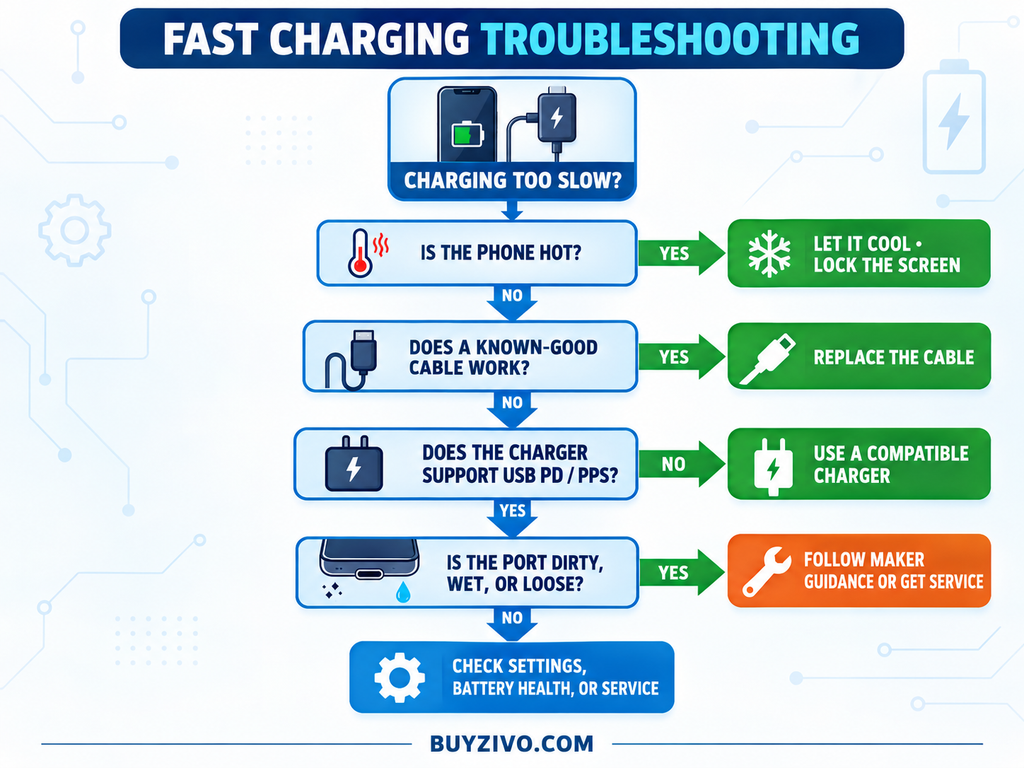
A Simple Test to Isolate the Problem
Use this controlled test before buying anything:
- Let the phone reach approximately 20% to 30% battery.
- Place it in a room-temperature environment.
- Remove a thick case if it appears to trap heat.
- Connect one known-compatible wall charger.
- Use one known-good and appropriately rated cable.
- Disconnect other devices from a multi-port charger.
- Note the starting battery percentage.
- Lock the screen and wait 20 minutes.
- Repeat the test by changing only the cable.
- If necessary, repeat it again by changing only the charger.
Changing one variable at a time helps reveal which component is affecting the result.
Battery percentage is not a laboratory-grade measurement. However, a controlled comparison is more useful than relying only on a third-party app’s instant wattage estimate.
Many charging apps report battery-side values rather than the exact power negotiated between the charger and phone.
When Should You Replace the Charger or Cable?
Replace the cable when:
- Another suitable cable restores fast charging
- The connection is intermittent
- The cable has visible physical damage
- A connector becomes abnormally hot
- It cannot support the required charging power
Replace the charger when:
- It fails with multiple known-good cables
- It performs poorly with multiple compatible devices
- It does not support the protocol required by your phone
- It has physical or thermal warning signs
- Its charging output repeatedly disconnects
Do not replace either one solely because:
- Charging slows between 80% and 100%
- The phone is currently hot
- The phone is being used heavily
- Optimized Charging pauses the session
- A configured charge limit stops charging early
Fix the charging condition first and test again.
If replacement is genuinely required, compare verified compatibility in Best GaN Chargers for iPhone and Android.
For charging away from an outlet, see Wireless Power Bank vs Wired Power Bank: Which One Should You Buy?.
Need a Compatible Fast Charger?
Compare verified USB PD and PPS chargers that match your phone’s charging requirements.
Frequently Asked Questions
Why does my phone say “fast charging” but still charge slowly?
The label confirms that a fast-charging mode was recognized. It does not guarantee that the phone will maintain peak wattage throughout the session.
Battery level, temperature, screen use, background activity, and power sharing can reduce the actual charging rate.
Can a 65W charger charge a phone too slowly?
Yes. A 65W rating only represents the charger’s maximum supported output.
If the charger lacks the protocol or power profile the phone needs—or if the cable is limiting power—the phone may charge at a much lower rate.
Does a longer USB-C cable charge more slowly?
It can. Cable resistance generally increases with length, although a properly designed cable can still meet its rated performance.
The cable’s condition, conductor design, current rating, supported wattage, and USB PD capability matter more than length alone.
Why does fast charging slow down after 80%?
Phones deliberately reduce charging power as the battery fills. Battery-protection features may also pause or limit charging near 80%.
Heat can reduce the charging speed further. In most cases, this is normal behavior.
Will turning off Optimized or Adaptive Charging make charging faster?
It may allow the phone to continue beyond a scheduled pause or configured charge limit.
However, it will not fix an incompatible charger, weak cable, heat problem, dirty port, or damaged hardware.
These features exist to help manage battery aging, so disable them only when the immediate need for a full charge outweighs that benefit.
Is it safe to clean a charging port myself?
You can visually inspect the charging port, but avoid metal tools, liquids, force, or aggressive scraping.
Follow the device manufacturer’s official cleaning instructions. If debris cannot be removed safely or the port appears damaged, use a qualified repair service.
Final Verdict
When a fast charger charges slowly, the charger itself is only one possible cause.
Test the entire charging chain under controlled conditions:
- A compatible wall adapter
- A properly rated cable
- A cool phone
- A clean charging port
- The screen turned off
- No other devices sharing the charger
Then check charging-protocol support and battery-protection settings.
Most slow-charging problems can be traced to compatibility, cable quality, temperature, power sharing, or normal battery-management behavior.
Replace the charger or cable only after changing one variable at a time and identifying which component is causing the problem.