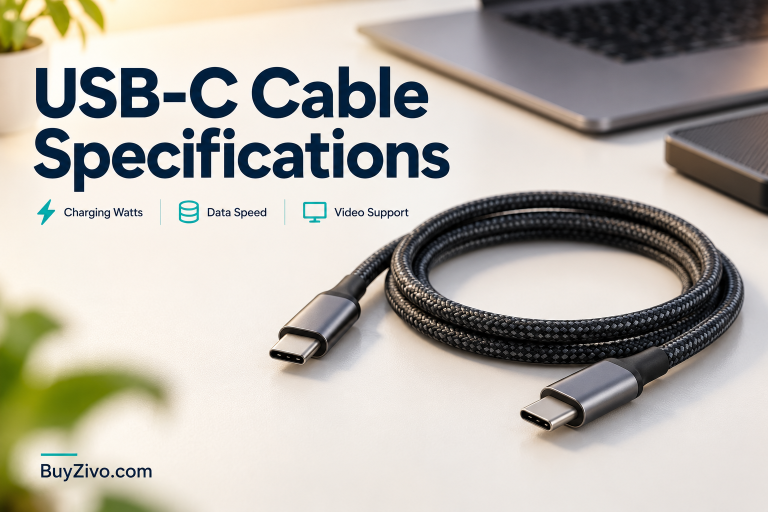
USB-C cable specifications cover three separate capabilities: charging power, data speed and video support. A “240W” USB-C cable can be suitable for charging and still be a poor choice for copying files to an external SSD. A cable that fits a monitor may also lack the capabilities needed to carry its display signal. Connector shape and the largest number on the packaging do not describe the whole cable.
This guide explains how to read power, data and video specifications separately. It is based on documentation, not hands-on cable benchmarks. For a product shortlist after identifying your requirements, see our USB-C fast-charging cable recommendations.
Quick Answer
Write down the charging capability, data rate and display function you need before comparing cables. Confirm each one for the exact model and length. A wattage rating answers a power question; it does not establish faster file transfers or video support.
Three Specifications to Read Separately
| Specification | What to look for | What it does not establish |
|---|---|---|
| Charging power | Power rating and any device-specific current requirement | Data speed or video capability |
| Data transfer | Explicit data rate and supported connection standard | That the charger or device delivers the cable’s maximum power |
| Display connection | Documented support for your monitor or dock connection | That a charging-only cable can perform the same job |
| Model and length | The exact variant covered by the specification | That all cables with the same brand or family name are identical |
1. Read the Power Rating as a Capability Limit
A cable’s advertised power rating is a capability limit, not power forced into a device. Actual charging depends on the compatible charger, cable and receiving device. Upgrading the cable cannot create an output profile missing from the adapter.
Under USB-IF’s current certification guidance, USB-C-to-USB-C cables in its program carry a 60W or 240W power marking. That rule concerns certified cable labeling; it does not mean every cable offered online has been certified.
You may also encounter existing 100W-rated cables. Check their documented limits rather than treating an older rating as automatically unusable. For charging above 100W, confirm the necessary EPR support across the entire charging setup.
A power rating alone can also miss a device-specific current requirement. Samsung’s EP-DX510 5A cable documentation describes up to 100W at 20V/5A and recommends a 5A cable for its specified 45W adapter’s maximum output. Follow the requirements for your exact phone and adapter, even when the desired wattage is below 60W.
2. Look for a Separate Data Specification
For charging only, high-speed data may add no useful benefit. For an external drive, the cable’s data capability matters alongside the computer port and drive. A cable cannot make a slower port or storage device operate at a higher supported rate.
Compare an explicit data specification rather than phrases such as “fast cable.” Also distinguish megabits or gigabits per second from megabytes per second; they are different units. An advertised link capability is not a measured file-copy result.
A useful real example is Apple’s 240W USB-C Charge Cable (2 m). Apple specifies charging up to 240W and USB 2 data rates. Its high power capability does not turn it into a high-speed storage cable. This is a manufacturer specification example, not a BuyZivo performance test.
For a new purchase, find the data rate for the exact variant. Do not transfer a claim from another length, connector combination or similarly named product. If data matters and no rate is documented, ask the manufacturer before buying.
3. Verify the Display Connection
For a monitor or dock, consult the documentation for both ends of the connection as well as the cable. Check the intended display standard, required cable type and any limits on resolution, refresh rate or length. A USB-C connector or high wattage label alone is insufficient.
A USB-C-to-USB-C monitor connection and a USB-C-to-HDMI adapter are different products. Do not assume that a cable suitable for one solves the other. If the monitor uses a supplied cable, its manual is a useful starting point for identifying an appropriate replacement.
When a listing explicitly supports video, read the conditions. A maximum display claim for one configuration is not a guarantee for every computer, dock and screen. If you need a particular resolution and refresh rate, match the whole connection rather than just the cable’s headline.
What About E-Markers and Certification?
An electronic marker helps compatible equipment identify cable capabilities. Its presence is not a shortcut to assuming every data or display feature is supported. Read the documented capabilities rather than treating “e-marked” as a complete specification.
USB-IF notes that a certified cable neither increases the capabilities of connected products nor removes their own certification requirements. Verify a certification claim for the exact cable through the issuing program or manufacturer documentation. A familiar logo or brand name alone is not verification.
Choose by the Task
- Phone or power-bank charging: match power and any current or charging-mode requirement; extra data capability may be unnecessary.
- Laptop charging: match the laptop’s recommended setup and cable power capability; check the charger’s actual port output too.
- External SSD: check the port, drive and cable data specifications together.
- Monitor or dock: confirm the documented display connection and the power/data functions you also need.
- One cable for several tasks: make a requirement list and verify that the same exact variant covers every task.
A Pre-Purchase Example
Suppose you need one cable to charge a laptop and connect an external SSD on different occasions. First record the laptop’s charging requirement, then the SSD and computer port’s data requirements. A cable advertised only as “240W charging” answers the first question incompletely and leaves the second unanswered.
Now add a monitor to the requirement list. That creates another check; neither the wattage nor a data-rate headline by itself establishes the precise display setup. Request the missing specification instead of assuming the most expensive cable will cover it.
If you only charge a phone, the same high-end data/display features may be unnecessary. Choose the documented capability you will use, with a suitable length and connector fit.
Check the Cable You Already Own
Before replacing a cable, identify its model and original specifications if available. Test the function you need with known-compatible equipment following manufacturer guidance. Successful charging does not prove high-speed data or display capability.
Check the jacket, connector and strain relief. Replace damaged equipment rather than bending it into a position where it works. A braided cover alone does not establish the electrical specification or long-term durability.
For slow charging, also check the charger’s supported profiles and shared-port output. Our USB-C charger power-sharing guide explains how adding another device can change available power.
Frequently Asked Questions
Does a 240W cable copy files faster?
Only if its separate data specification and connected equipment support a faster connection. The wattage rating does not answer that question.
Does a high-wattage cable guarantee monitor support?
No. Check explicit display compatibility for your computer, monitor or dock and the exact cable variant.
Should I replace a working 100W cable with a 240W one?
Not solely because the larger rating exists. Check whether the current cable covers your required power and functions and remains in suitable condition.
Is the same model name enough when choosing a length?
No. Verify the specification for the length and variant being sold. Do not assume every version in a product family has identical capabilities.
Can certification make my device charge or transfer faster?
Certification does not increase the capabilities of connected devices. Match the certified cable’s actual specification to the task.
Buying Decision
Keep power, data and display requirements in separate fields. Buy only when each function you need is documented for the exact cable. Once those requirements are clear, compare the fast-charging cable shortlist and confirm the current model details before ordering.
Sources and Research Basis
- USB-IF: Cables and Connectors — certification markings and capability limits.
- Apple: 240W USB-C Charge Cable (2 m) — an example of high power with USB 2 data rates.
- Samsung: EP-DX510 5A cable — model-specific current and charging guidance.
Checked on 9 October 2026. This guide interprets specifications; it does not report independently measured charging times, transfer speeds or durability.