Introduction
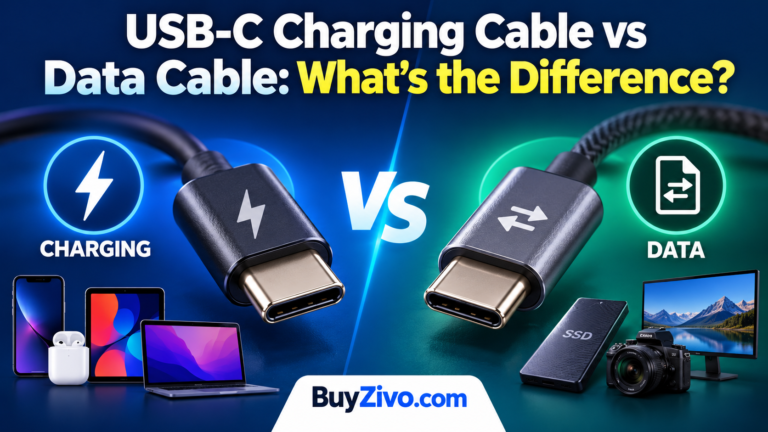
You plug a USB-C cable into your laptop, and it charges perfectly. But when you connect an external SSD, transferring a large video takes forever—or the drive doesn’t work as expected.
What’s going on?
The answer is that USB-C cables can look identical while supporting very different capabilities. Some prioritize charging, some support high-speed data transfers, and others handle charging, data, and external displays through one connection.
Here’s the important distinction: a USB-C charging cable isn’t necessarily a cable that only charges. Many charging-focused USB-C cables also transfer data, just at relatively slow USB 2.0 speeds.
Understanding the differences can save you from buying the wrong cable, especially if you’re connecting an iPhone, Android phone, laptop, external SSD, or USB-C monitor.
USB-C Charging Cable vs Data Cable: Quick Comparison
Feature Charging-focused USB-C cable High-speed USB-C data cable Main purpose Deliver power Transfer files and connect peripherals Charging Depends on cable rating May also support high-wattage charging Data speed Often USB 2.0, up to 480Mbps Commonly 5, 10, 20, 40Gbps or higher, depending on specification External displays USB 2.0-only cables generally lack video support Possible with compatible full-featured cables and devices Best for Phones, tablets, power banks, laptops External SSDs, docks, high-speed peripherals Cost Often less expensive Often more expensive, particularly at higher speeds These categories describe typical products, not two mutually exclusive USB standards. A single cable can support both high-wattage charging and high-speed data.
USB-IF explicitly distinguishes USB-C connector technology from USB data protocols and USB Power Delivery.
What Is a USB-C Charging Cable?
A USB-C charging cable is designed to deliver electrical power between compatible devices. It might connect your phone to a wall charger, your laptop to a USB-C power adapter, or your tablet to a power bank.
However, the label “charging cable” describes its intended use rather than a separate USB standard.
For example, Apple’s 60W USB-C Charge Cable (1 m) supports both charging and USB 2.0 data transfers. Its published specifications establish that it can charge devices at up to 60W while also syncing files.
How much power can USB-C cables carry?
USB-C cable ratings commonly include:
- 60W: Suitable for many phones, tablets, and laptops that require no more than 60W.
- 100W: Found on older and some currently marketed 5A cable designs; check their exact specifications.
- 240W: Designed for higher-power USB PD Extended Power Range applications, while remaining usable with compatible lower-power equipment.
USB-IF’s current certification labeling framework uses 60W and 240W cable markings. The 240W designation does not mean a connected device automatically receives 240W.
Charging speed depends on the entire setup: the charger, cable, device, and supported charging protocols.
A 240W-rated cable connected to a 30W charger cannot turn that charger into a 240W power source.
Does a charging cable transfer data?
Usually, yes—if it’s a standards-compliant USB-C cable.
Even a basic USB 2.0 USB-C cable can transfer files at a theoretical maximum of 480Mbps. That’s sufficient for routine syncing, occasional photo transfers, and many simple accessories.
But USB 2.0 can feel painfully slow when moving hundreds of gigabytes.
Some products marketed as “charge-only” use nonstandard wiring that omits data functionality. These should not be confused with ordinary standards-compliant USB-C charging cables.
What Is a USB-C Data Cable?
A USB-C data cable is intended to carry digital information between compatible devices.
Think of connecting an external SSD to a laptop, transferring 4K videos from a phone, or attaching a docking station.
For these jobs, the cable’s supported USB data rate matters.
USB-C data speeds explained
| Data standard / label | Theoretical maximum | Typical use |
|---|---|---|
| USB 2.0 | 480Mbps | Basic syncing and charging cables |
| USB 5Gbps | 5Gbps | General-purpose external storage |
| USB 10Gbps | 10Gbps | Faster external SSDs |
| USB 20Gbps | 20Gbps | Compatible high-performance peripherals |
| USB 40Gbps | 40Gbps | Advanced docks and storage |
| USB 80Gbps | 80Gbps | Supported next-generation high-bandwidth devices |
These are signaling rates, not guaranteed file-copy speeds. Real transfers are affected by protocol overhead, storage performance, the host port, and the connected device.
A 10Gbps cable connected to a USB 2.0-only device won’t make that device transfer at 10Gbps.
USB-IF advises consumers to select cables based on the capabilities needed by their particular devices.
Real-World Examples: Which Cable Actually Matters?
Example 1: Charging an iPhone
Suppose you own an iPhone 16 Pro.
Apple specifies USB 3 support at up to 10Gbps for this model, but reaching that speed requires a suitable USB 3 cable. The included USB-C charging cable supports USB 2.0 data speeds.
That means the included cable is appropriate for charging and routine syncing, but a 10Gbps-capable cable makes more sense when regularly transferring large video files to a compatible computer.
Example 2: Transferring a 10GB video file
Consider a hypothetical 10GB file.
Idealized minimum transfer times
0 sec45 sec90 sec135 sec180 sec480Mbps5Gbps10Gbps20Gbps
Calculated from decimal 10GB ÷ nominal signaling rate; actual transfers take longer.
Illustrative theoretical figures, not benchmark results. Actual speeds depend on device and storage capabilities.
The takeaway isn’t that every 10Gbps cable will copy a 10GB video in eight seconds. It’s that a USB 2.0 cable can become a major bottleneck even when both connected devices support faster transfers.
Example 3: Charging a USB-C laptop
If your laptop requires 65W or more, a standard 60W cable might limit available charging power.
A properly rated higher-power cable, a compatible USB PD charger, and a laptop that supports the required power profile are necessary to reach the intended charging level.
A cable’s data rating does not determine whether it supports USB PD charging.
Example 4: Connecting a USB-C monitor
A USB-C cable that successfully charges a laptop might not carry video.
For a USB-C DisplayPort Alt Mode connection, the host, display, and cable must support the required functionality. A USB 2.0-only charging cable generally lacks the necessary high-speed signaling paths.
For a Thunderbolt or USB4 display setup, choose a cable specifically rated for the required connection and verify the device specifications.
Can One USB-C Cable Handle Charging, Data, and Video?
Yes. A properly specified full-featured cable can support all three.
A cable must have the appropriate specifications for the features you need. The USB-C connector alone guarantees none of these higher-level capabilities.
USB Power Delivery manages power negotiation, while USB data protocols determine transfer capabilities. Display functionality may use DisplayPort Alt Mode, USB4, or Thunderbolt, depending on the hardware.
What about PPS? Programmable Power Supply (PPS) is an optional USB PD charging feature that allows compatible devices to request adjustable power levels. It is not a data-transfer standard or a separate cable-speed category.
What about Qi2? Qi2 concerns wireless charging, not USB-C cable data speed. A USB-C cable powering a wireless charging pad still needs an appropriate power rating, but the pad’s Qi2 functionality is separate.
How to Identify a USB-C Cable Before Buying
You cannot reliably determine a USB-C cable’s data speed just by looking at its connector.
Instead, check its specifications and labeling.
- Check the wattage. Look for a clearly stated 60W, 100W, or 240W rating, as applicable to the product.
- Find the data speed. Look for explicit values such as 480Mbps, 5Gbps, 10Gbps, 20Gbps, or 40Gbps.
- Verify display support. If you need an external monitor, confirm compatibility with the intended DisplayPort, USB4, or Thunderbolt setup.
- Check certification. Prefer products with verifiable USB-IF certification when available.
- Check the length. High-speed signal performance can be more challenging over longer cables. Confirm that the advertised speed applies to the exact length you’re buying.
USB-IF requires certified USB-C to USB-C cables to carry appropriate power markings and, except for USB 2.0-only cables, supported data-rate markings.
You can look up certified products using the USB-IF Product Search.
How We Chose and Evaluated Cable Capabilities
This comparison prioritizes documented technical compatibility rather than brand popularity, price, or marketing language.
We reviewed USB-IF guidance on cable identification, USB Power Delivery, and data support, along with Apple’s published specifications for real-world device examples.
Our selection criteria were power delivery, supported data rates, device compatibility, display requirements, and clarity of manufacturer documentation.
No hands-on testing, charging-temperature measurements, durability testing, or independent speed benchmarks were performed.
Safety, heat, and warranty considerations
Charging cables can become warm during normal use, particularly at higher power levels. Excessive heat, damaged connectors, exposed wiring, or intermittent connections are reasons to stop using a cable.
USB-IF certification provides evidence that a particular product has passed applicable compliance testing, but it does not guarantee unlimited durability or eliminate every safety risk.
Warranty coverage varies by manufacturer, cable model, purchase region, and seller. Check the actual warranty terms rather than assuming that a premium cable automatically includes better protection.
Common USB-C Cable Problems and How to Fix Them
Your phone charges, but your computer doesn’t recognize it
First, check whether the cable supports data transfer. If it’s a nonstandard charge-only cable, replace it with a documented data-capable USB-C cable.
If the cable supports data, try another USB port, unlock your phone, and approve any file-access prompt. Also check your phone’s USB connection settings.
A failed file connection doesn’t automatically mean the cable is defective.
Your external SSD transfers files slowly
Check the cable’s data specification first.
A USB 2.0 cable can limit a fast external SSD to USB 2.0 speeds, even if the SSD and laptop both support 10Gbps.
Use a cable rated for the SSD’s intended interface and make sure the computer’s port supports that speed.
Your laptop charges slowly
Confirm that your power adapter delivers sufficient wattage and that your cable supports the required power level.
If your laptop needs more than 60W, a 60W-rated cable may be a limitation. Also consider that some laptops reduce charging speed during demanding workloads or at elevated battery temperatures.
Your USB-C monitor shows no picture
Confirm that the computer’s USB-C port supports video output, then verify that the cable supports the required video connection.
A cable that works for charging or basic data syncing is not necessarily suitable for a USB-C display.
Frequently Asked Questions
Can I use a USB-C charging cable as a data cable?
Yes, provided it supports data transfer. Standards-compliant USB-C charging cables generally support at least USB 2.0 data. For large files or external SSDs, a faster cable is preferable.
Is a 100W or 240W USB-C cable faster for data?
Not necessarily. Wattage measures power-delivery capability, not data-transfer speed. A 240W cable may support only USB 2.0 data rates.
Does USB-C automatically mean USB 3.0?
No. USB-C identifies the connector type. A USB-C connection may operate at USB 2.0, USB 3.x, USB4, or other supported speeds depending on the hardware.
Can a USB-C data cable fast-charge my phone?
Yes, if the cable supports the required current and power, and the charger and phone support compatible charging protocols.
Do I need Thunderbolt for fast file transfers?
Not always. USB 10Gbps and USB 20Gbps connections can already provide substantial improvements over USB 2.0. Thunderbolt becomes more relevant when your devices require its particular capabilities.
Does a more expensive USB-C cable charge faster?
Not automatically. Once the cable meets your device’s electrical requirements, spending more won’t necessarily improve charging speed. Higher prices may reflect data bandwidth, length, construction, certification, or other features.
Final Verdict: Which USB-C Cable Should You Choose?
For everyday phone charging, a reputable 60W USB-C cable with USB 2.0 data support is often enough. You don’t need a 40Gbps cable just to charge your phone.
For large photo libraries, external SSDs, and frequent video transfers, prioritize a cable that supports your devices’ actual data speeds.
For laptops, high-power charging, docking stations, and monitors, check power, data, and display compatibility separately.
The simplest buying rule: Match the cable to the most demanding task you actually perform. Don’t pay for bandwidth you won’t use, but don’t assume a high-wattage cable will deliver high-speed data.
For more help choosing a cable, read BuyZivo’s related guide: Best USB-C Cables for Fast Charging