Start With Your Laptop, Not the Hub’s Port Count
A seven-port USB-C hub can look like the perfect laptop accessory until you connect your monitor and discover it only runs at 30Hz. Or your laptop charges more slowly than expected. Sometimes the HDMI port doesn’t work at all.
The problem may not be a defective hub. Your laptop’s USB-C port might not support video output, the hub may have limited display bandwidth, or the charger may not supply enough power after the hub takes its share.
The short answer: Buy a USB-C hub only after confirming three things: what your laptop supports, which connections you actually need, and what the hub can deliver when those connections are used together.
This USB-C hub buying guide explains how to make those checks without getting buried in technical specifications.
Which USB-C Hub Ports Do You Actually Need?
More ports aren’t automatically better. A compact hub with four useful connections may be a better purchase than a larger model filled with ports you’ll rarely touch.
Start by listing what you connect to your laptop during a normal workday.
| Port | What it connects | What to check |
|---|---|---|
| USB-A | Mouse, keyboard, flash drive, older accessories | Number of ports and individual data speeds |
| USB-C data | External SSD, phone or other USB device | Whether it supports data, charging output or both |
| HDMI | External monitor, TV or projector | Maximum resolution and refresh rate |
| DisplayPort | Compatible external monitors | Display version, host support and display limits |
| USB-C PD input | Compatible USB-C charger | Maximum input and actual laptop charging output |
| SD/microSD | Camera and memory cards | Card formats and supported transfer modes |
| Ethernet (RJ45) | Wired internet or local network | 1Gbps or faster support, where needed |
| 3.5mm audio | Headphones or speakers | Whether the hub includes audio support |
For Everyday Office Work
If you mainly use a keyboard, mouse, external monitor and charger, a hub with HDMI, two USB-A ports and USB-C PD input may cover everything.
You don’t necessarily need an SD card reader or multiple high-speed USB-C ports.
For Photography and File Transfers
Look more closely at the card reader and USB data specifications.
An external SSD may benefit from a 10Gbps USB connection, provided the laptop, drive enclosure and hub all support that speed. A fast card reader also needs a compatible memory card to deliver its advertised performance.
For a Permanent Desk Setup
A dock may make more sense than a compact travel hub, particularly if you want two monitors, Ethernet, several storage devices and charging through one connection.
Check the dock’s compatibility just as carefully as a portable hub’s.
Does Your Laptop’s USB-C Port Support a Monitor?
This is the most important compatibility check if you’re buying a hub with HDMI or DisplayPort.
USB-C describes the physical connector. It doesn’t tell you every feature supported by the port.
According to the USB Implementers Forum (USB-IF), USB-C devices aren’t required to support every optional USB data, power or alternate-mode capability.
For video output, many USB-C hubs rely on DisplayPort Alternate Mode, commonly called DP Alt Mode. This allows a compatible laptop to send a display signal through its USB-C port.
A hub cannot simply add native DP Alt Mode to a laptop port that doesn’t provide it.
How to Check Video Compatibility
- Find your laptop’s exact model number and, where applicable, processor configuration.
- Open the manufacturer’s official specifications or user manual.
- Find the USB-C port description.
- Look for DisplayPort Alt Mode, USB-C video output, compatible USB4 video capabilities or Thunderbolt support.
- Check the number of supported external displays and their maximum resolutions.
- Compare those capabilities with the hub manufacturer’s compatibility documentation.
Don’t rely on the port’s shape or a general statement that the laptop has USB-C.
For example, a laptop with USB-C charging and USB data support might still lack native video output through that port.
Some specialized USB graphics adapters use technologies such as DisplayLink to provide displays through USB data connections. These require a different compatibility check, including software and operating-system support. They’re not equivalent to native DisplayPort Alt Mode.
What Does 4K at 30Hz or 60Hz Mean?
When shopping for a USB-C hub, you’ll often see HDMI specifications such as:
- 4K at 30Hz
- 4K at 60Hz
- 1080p at 60Hz
The first number describes the display resolution. The second describes how often the screen refreshes each second.
For everyday desktop use, 60Hz generally provides smoother pointer movement, scrolling and window animations than 30Hz.
If you have a 4K monitor that supports 60Hz, choosing a hub limited to 4K at 30Hz may prevent you from using the monitor’s preferred refresh rate through that connection.
Why an Advertised 4K60 Hub Might Not Deliver 4K60
The complete connection matters:
Laptop → USB-C port → Hub → HDMI or DisplayPort cable → Monitor
Every part must support the required display mode.
The actual result may depend on:
- The laptop’s DisplayPort capabilities
- Available video bandwidth through the USB-C connection
- The hub’s display conversion hardware
- Whether the hub shares bandwidth with high-speed USB data
- The monitor and cable capabilities
- Resolution, refresh rate, color format and compression support
VESA explains that DisplayPort Alt Mode can share USB-C’s high-speed lanes with USB data. Different configurations can allocate those lanes differently.
This is why a hub may advertise a high maximum display resolution while offering a lower refresh rate on certain laptops or when particular data modes are active.
Buying advice: If you need 4K at 60Hz, look for documentation confirming that mode with your laptop’s supported video standard. A generic 4K label isn’t enough.
Can One USB-C Hub Run Two External Monitors?
Possibly, but two HDMI sockets don’t guarantee two independent extended displays.
A hub might support two monitors on one Windows laptop while offering only mirrored output or a different configuration on a Mac.
The answer depends on the host computer, its graphics hardware, the hub’s display technology and the operating system.
Windows Laptops
Some Windows laptops support multiple independent displays through DisplayPort Multi-Stream Transport (MST).
If you’re considering an MST-based hub, confirm that your laptop supports the required display configuration and that the hub can deliver the intended resolution and refresh rate to both monitors simultaneously.
MacBooks
Mac compatibility needs particular attention.
Apple’s official external-display documentation lists display limits by exact Mac model and chip. A hub cannot increase the maximum number of native external displays supported by the computer.
Also, don’t assume a conventional MST-based dual-HDMI hub will provide two independent extended desktops on macOS.
For a Mac, choose a display solution that explicitly supports your model and the intended arrangement. Thunderbolt display connections and software-driven USB graphics solutions have different requirements.
If a seller advertises “dual monitor support” without explaining the operating-system differences, treat that as an unresolved compatibility question.
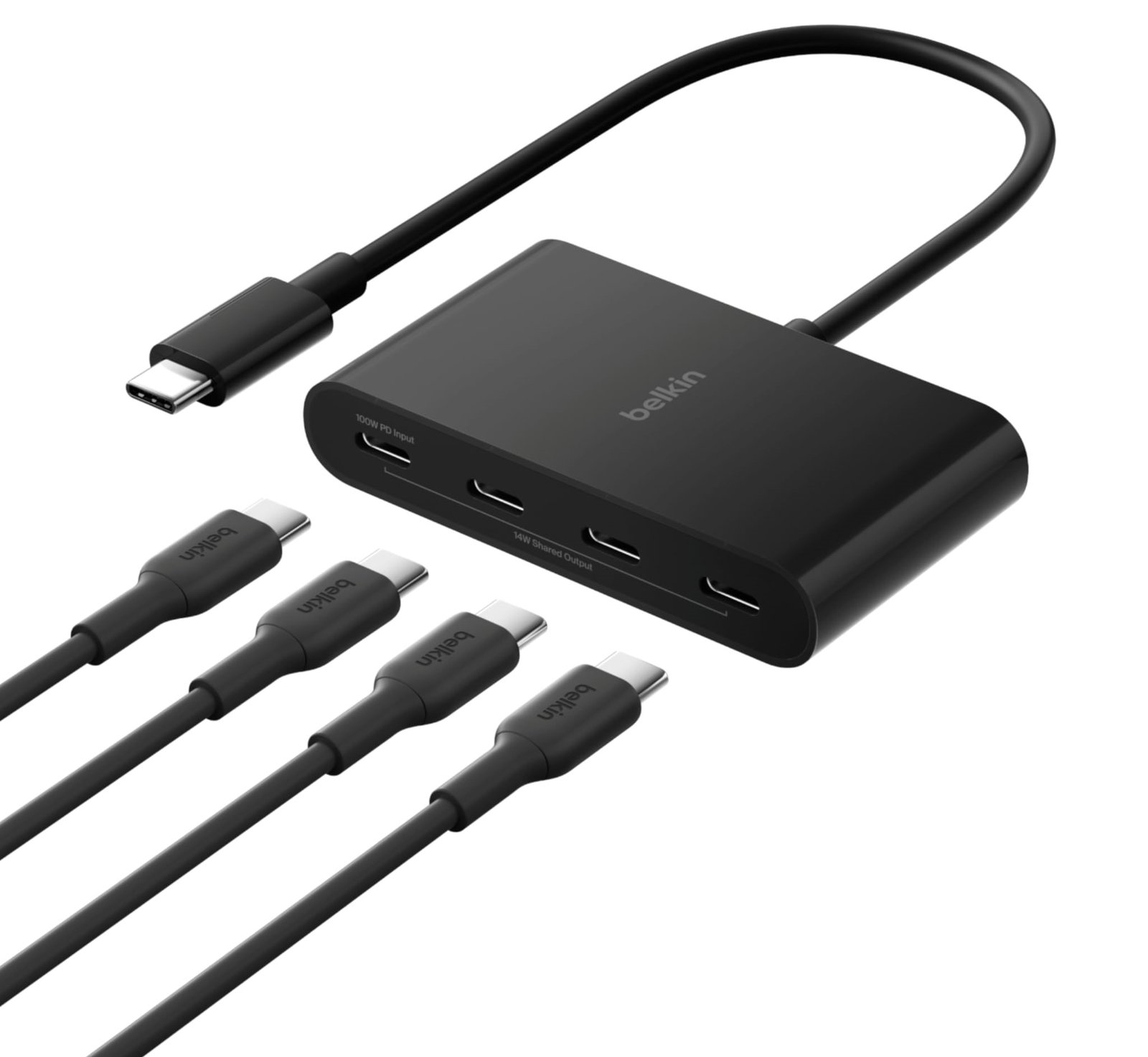
Belkin 100W 10Gbps Multiport USB-C Hub
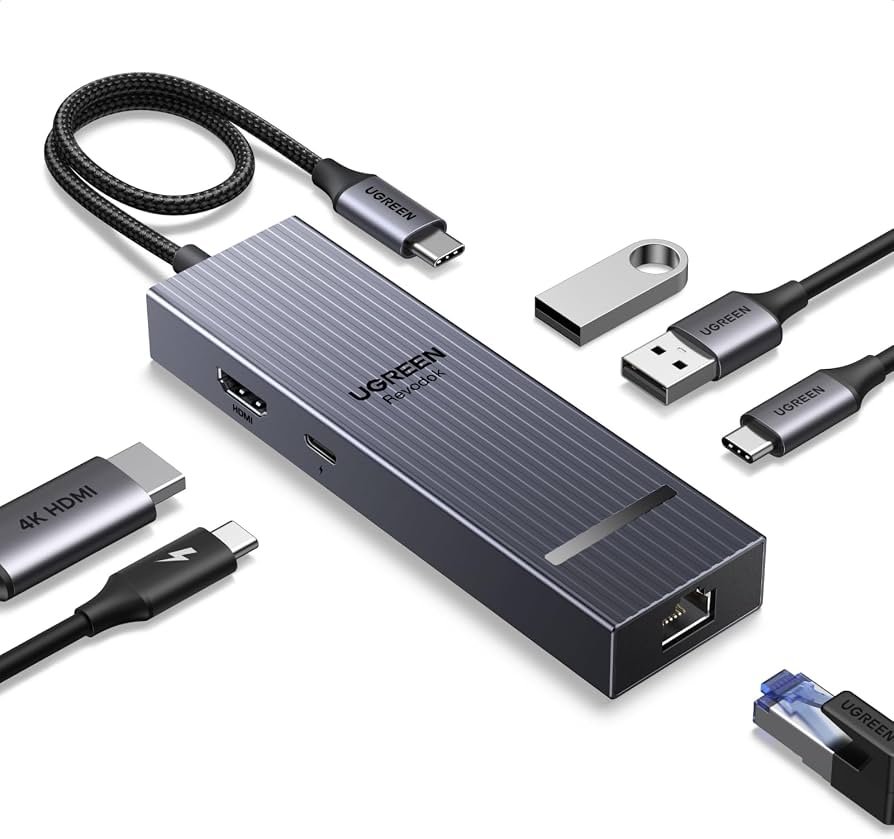
UGREEN Revodok Pro USB-C Hub
How Fast Should Your USB Ports Be?
USB-C hubs can contain ports with very different data capabilities.
A USB-C-shaped socket might be intended only for power input. Another might support USB data at 5Gbps or 10Gbps.
The connector alone won’t tell you.
| Advertised USB data speed | What it means for buyers |
|---|---|
| 480Mbps | Suitable for basic peripherals and slower transfers |
| 5Gbps | Useful for many flash drives and general accessories |
| 10Gbps | Worth considering for compatible faster external storage |
| 20Gbps or higher | Requires particular attention to the host, hub and device specifications |
These are advertised link speeds, not guaranteed file-copy speeds. Real transfer performance is lower because of protocol overhead and the limitations of connected devices.
Do All Ports Run at Full Speed Together?
Not necessarily.
Several USB ports on a hub may share one upstream connection to the laptop. A fast external SSD and another high-bandwidth device can compete for that capacity.
The hub’s internal controller and display configuration can also affect what bandwidth is available.
For basic office accessories, this may not matter much. For large video files or frequent SSD transfers, it deserves closer attention.
Check whether the manufacturer documents simultaneous-use limits rather than assuming that every port’s maximum speed is available at once.
How Much Power Actually Reaches Your Laptop?
USB-C Power Delivery pass-through is one of the most useful hub features, but its labeling can be confusing.
A hub may advertise “100W PD” without delivering 100W to the laptop.
Some power is needed to operate the hub and its connected devices. The manufacturer may therefore specify a lower maximum laptop charging output than the advertised PD input.
A Simple Charging Example
Suppose a hub’s official specifications state:
- Maximum PD input: 100W
- Maximum laptop charging output: 85W
With a compatible 100W charger, the hub’s stated laptop charging limit is 85W, not 100W.
That doesn’t mean the laptop will continuously draw 85W. Actual power depends on USB PD negotiation, the laptop’s requirements, the charger, the cable, and operating conditions.
The figures above are hypothetical. They don’t describe a particular product.
What to Check Before Buying
Compare these four specifications:
| Component | Question to answer |
|---|---|
| Laptop | How much USB-C charging power does it require or accept? |
| Charger | Does it provide the necessary USB PD output profiles? |
| Hub | What is the maximum PD input and downstream laptop output? |
| Cable | Does it support the required power and connection type? |
A laptop that normally uses a 100W adapter may receive less power through a hub capped at 85W output. It could charge more slowly or draw from its battery during demanding workloads.
Some laptops don’t support charging through every USB-C port, while others require a manufacturer-specific power connection for full performance.
For a closer explanation of charging negotiation, read BuyZivo’s USB Power Delivery Explained for Beginners.
If you’re sharing one charger between devices, the USB-C Charger Power Sharing Guide covers why available wattage can change when multiple devices are connected.
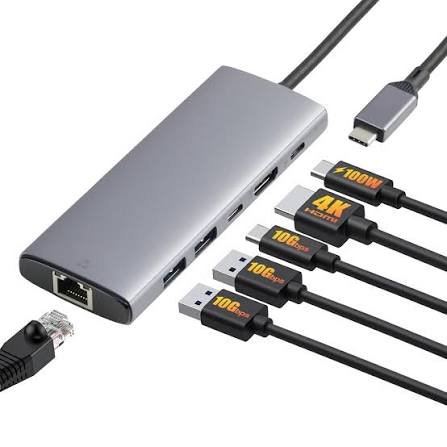
Amazon Basics 6-in-1 USB-C 3.2 (10G) Hub
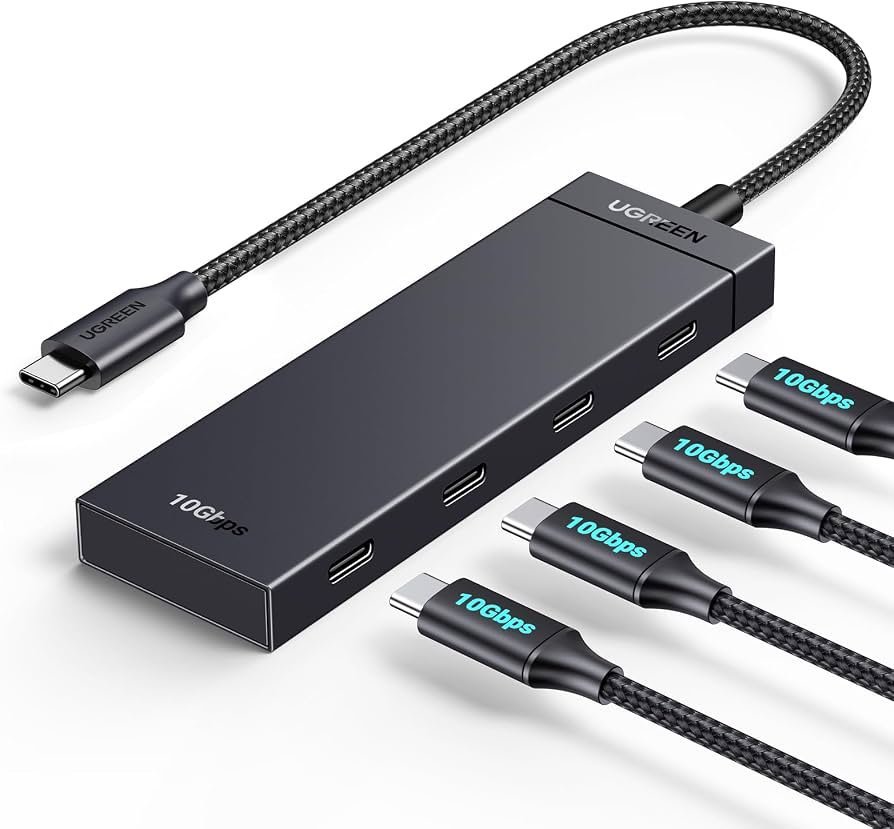
UGREEN USB C Hub 4 Ports, Multiple USB 3.2 Hub
USB-C Hub vs. Thunderbolt Dock: Which Should You Buy?
A basic USB-C hub is often enough for a laptop with one external monitor and a few accessories.
A Thunderbolt dock becomes more relevant when you need additional high-bandwidth connections, compatible display configurations or a more permanent workstation.
| Buying factor | Standard USB-C hub | Thunderbolt dock |
|---|---|---|
| Port selection | Often a smaller collection | Often more desktop-oriented connections |
| Display support | Depends on host and hub | Depends on Thunderbolt generation, host and dock |
| High-speed peripherals | Limited by the documented USB connection | May support higher-bandwidth Thunderbolt devices |
| Laptop charging | Model-specific PD pass-through | Model-specific power delivery |
| Compatibility | Must check USB-C data and video capabilities | Must check Thunderbolt and fallback compatibility |
| Best fit | Travel and simple desk setups | More demanding, compatible workstations |
A Thunderbolt dock is not automatically the right choice for every USB-C laptop.
Intel’s Thunderbolt compatibility guidance warns that a Thunderbolt accessory may not operate as expected when connected to a USB-C port without the required Thunderbolt capability.
Some docks offer documented fallback modes, but their available features can change when connected to a non-Thunderbolt host.
Before spending more, confirm that your laptop can use the dock’s advertised capabilities.
Five USB-C Hub Buying Mistakes to Avoid
1. Counting Ports Instead of Checking Their Functions
Two USB-C sockets may look identical while serving different purposes. One could be PD input only, while the other supports data.
Read the individual port descriptions.
2. Assuming HDMI Means Universal Monitor Support
An HDMI output on a hub doesn’t establish that your laptop can supply the required video signal.
Check the host’s video support first.
3. Buying a Dual-Monitor Hub Without Checking the OS
Multiple display outputs don’t necessarily mean multiple independent desktops.
This is especially important when comparing Windows MST setups with macOS configurations.
4. Treating 100W PD Input as 100W Laptop Charging
Look for the actual laptop output rating and confirm the charger and cable requirements.
5. Ignoring Cable Length and Port Placement
A compact hub can be inconvenient if its attached cable is too short for your laptop stand or its USB ports are too close together for larger flash drives.
Check the physical dimensions and layout before ordering.
Pros and Cons of Using a USB-C Hub
Pros
- Adds useful connections without replacing your laptop.
- Can simplify a one-monitor desk setup.
- May allow compatible laptop charging through the same connection.
- Compact models are convenient for travel.
- Lets you keep using existing USB-A accessories and memory cards.
Cons
- Display support depends on the host computer.
- Some ports share limited upstream bandwidth.
- Pass-through charging can be lower than the advertised PD input.
- Multiple-monitor support varies by operating system and display technology.
- Compact layouts can create cable and connector crowding.
Alternatives Worth Considering
A multiport hub isn’t always the simplest answer.
USB-C to HDMI adapter: Consider this when you only need to connect one external monitor. Confirm video compatibility and the required display mode.
USB-A or USB-C data-only hub: Useful when you need more connections for keyboards, mice or storage but don’t need monitor output or laptop charging.
Thunderbolt or USB4 dock: Consider a documented compatible dock when you need higher-bandwidth peripherals or a complex desk setup.
Monitor with USB-C docking features: A compatible monitor may already provide video, charging and USB ports through one cable. Check its actual power output and host requirements.
Who Should Buy a USB-C Hub?
A USB-C hub makes sense if:
- Your laptop supports the required USB-C features.
- You regularly connect several accessories.
- You need a portable way to add HDMI, USB-A, Ethernet or card readers.
- A compact setup covers your monitor and charging requirements.
Who Should Skip One?
Skip a general-purpose multiport hub if you only need one additional connection and a simpler adapter would do.
Also hold off if your laptop’s USB-C video support is unclear, you need multiple high-resolution monitors without confirmed compatibility, or your laptop requires more charging power than the hub can deliver.
In those cases, identify the host’s limitations before choosing another accessory.
USB-C Hub Buying Checklist
Before adding a hub to your cart, confirm each item.
- I know my laptop’s exact model and operating system.
- I’ve checked whether its USB-C port supports video output.
- I’ve listed the ports I actually need.
- The hub supports my monitor’s intended resolution and refresh rate.
- Any dual-monitor setup is explicitly supported on my computer.
- The USB data speeds meet my storage requirements.
- I know the hub’s maximum PD input and actual laptop charging output.
- My charger and cable meet the documented requirements.
- The hub’s cable length and port placement fit my setup.
- I’ve checked the manufacturer’s warranty, return policy and exact model documentation.
Frequently Asked Questions
Can a USB-C hub work without an external power adapter?
Many bus-powered hubs can operate from the laptop’s USB port, subject to available power and connected-device requirements. However, pass-through laptop charging requires a compatible external power source, and some peripherals may need more power than the host can provide.
Will a USB-C hub reduce my laptop’s charging speed?
It can. The hub may have a lower laptop output limit than the connected charger provides. Check the hub’s output specification and the laptop’s charging requirements.
Can I connect an external SSD to a USB-C hub?
Yes, if the hub provides a compatible data port. Transfer speed will depend on the host, hub, storage device, connection, and any shared bandwidth limitations.
Can I use a USB-C hub with an iPad?
Some USB-C iPads support external accessories, displays and power through compatible hubs. The exact features depend on the iPad model, iPadOS version, hub and connected devices. Check Apple’s model-specific documentation before buying.
Final Verdict: Buy for Verified Compatibility
For most everyday laptop users, a compact USB-C hub with the necessary USB-A connections, a documented 4K60 display output, and suitable PD pass-through is a sensible starting point.
But those specifications only help if your laptop supports them.
If you need one monitor and a few office accessories, don’t pay for a complex dock without a clear reason. If you need multiple displays, high-speed storage and dependable charging at a desk, compare compatible docking stations instead.
The best USB-C hub is the one whose documented capabilities match your exact laptop and the devices you’ll connect.