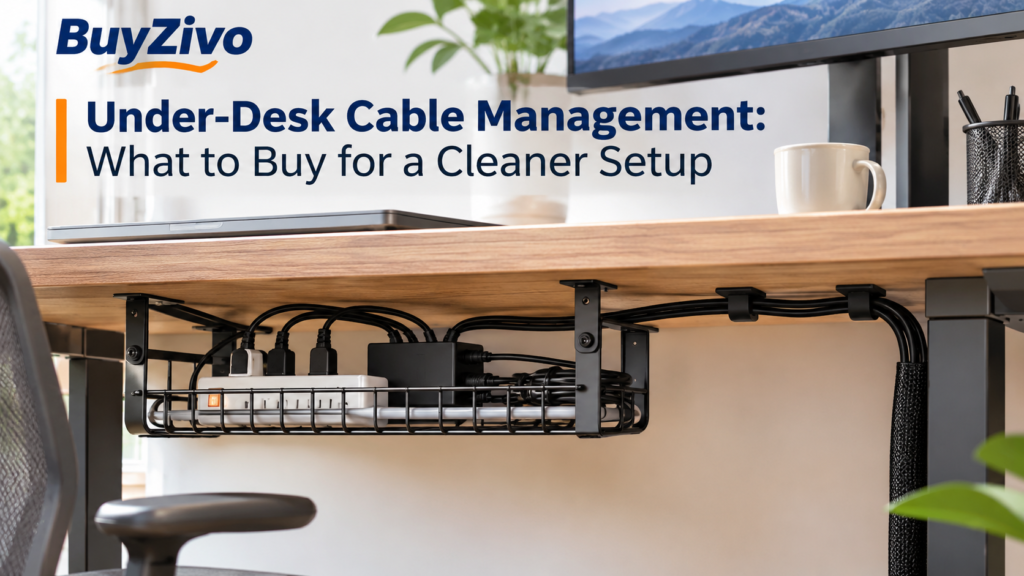
Under-Desk Cable Management: What to Buy for a Cleaner Setup
A desk can look organized on top and still have a mess underneath. Power strips, monitor cables, charging wires, and adapters often end up hanging from the back of the desk or collecting on the floor.
The right under-desk cable management setup depends on what you need to organize and how your desk is built. A metal cable tray can hold a power strip and several adapters, while adhesive clips are better for guiding individual wires. A cable sleeve can bundle several cables into one cleaner run.
For most home offices, a combination works better than relying on one organizer. Start with a tray if you have several devices, add clips to control individual cable paths, and use a sleeve where multiple wires travel together.
Before buying anything, check your desk thickness, available mounting space, installation requirements, and the organizer’s weight limit.
What Should You Buy for Under-Desk Cable Management?
There are four main options: cable trays, cable clips, cable sleeves, and cable-routing accessories.
| Organizer | Best use | Installation | Main limitation |
|---|---|---|---|
| Under-desk cable tray | Power strips, adapters and loose cables | Clamps or screws | Needs sufficient clearance |
| Adhesive cable clips | Individual cables and short cable runs | Adhesive backing | Adhesion depends on surface preparation |
| Cable sleeves | Bundling several cables together | Wrap or slide over cables | Can make individual cables harder to access |
| Cable ties and mounts | Grouping and securing cable bundles | Reusable straps, adhesive or screws | Too much tightening can make routing inconvenient |
You don’t necessarily need all four. A laptop desk with one monitor may only need a few clips and a sleeve. A desktop computer setup with multiple monitors, speakers, and a power strip will usually benefit from a tray as well.
Under-Desk Cable Trays: Best for Power Strips and Multiple Cables
A cable tray attaches beneath the desktop and creates a dedicated place for power strips, adapters, and excess cable length.
Instead of allowing everything to hang behind your desk, you can route the cables into one organized area. This also makes it easier to keep loose wires away from your legs and the floor.
Clamp-on vs. screw-mounted trays
There are two common mounting methods.
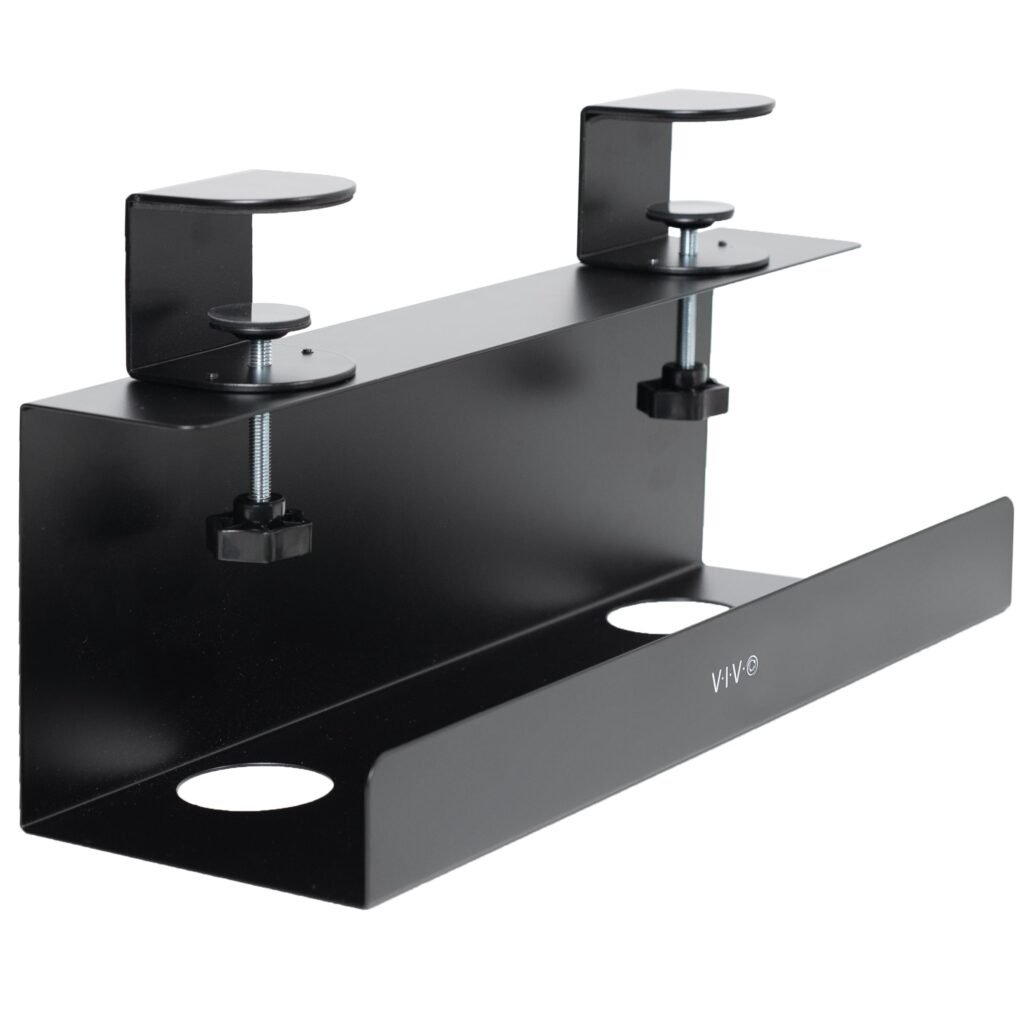
Clamp-on trays
These attach to the desk edge using adjustable brackets. Most designs don’t require drilling, making them useful for rented workspaces or desks you may want to rearrange.
However, the desk must have a compatible edge. Some trays need a flat rear edge and sufficient space for the clamp mechanism.
For example, the VIVO DESK-CM6L-B Clamp-on Cable Management Tray supports desktop thicknesses from 0.2 to 2 inches. Its manufacturer lists a steel construction, dimensions of 17 × 6 × 5.8 inches (8.8 inches including clamps), and an 11-pound weight capacity.

Screw-mounted trays
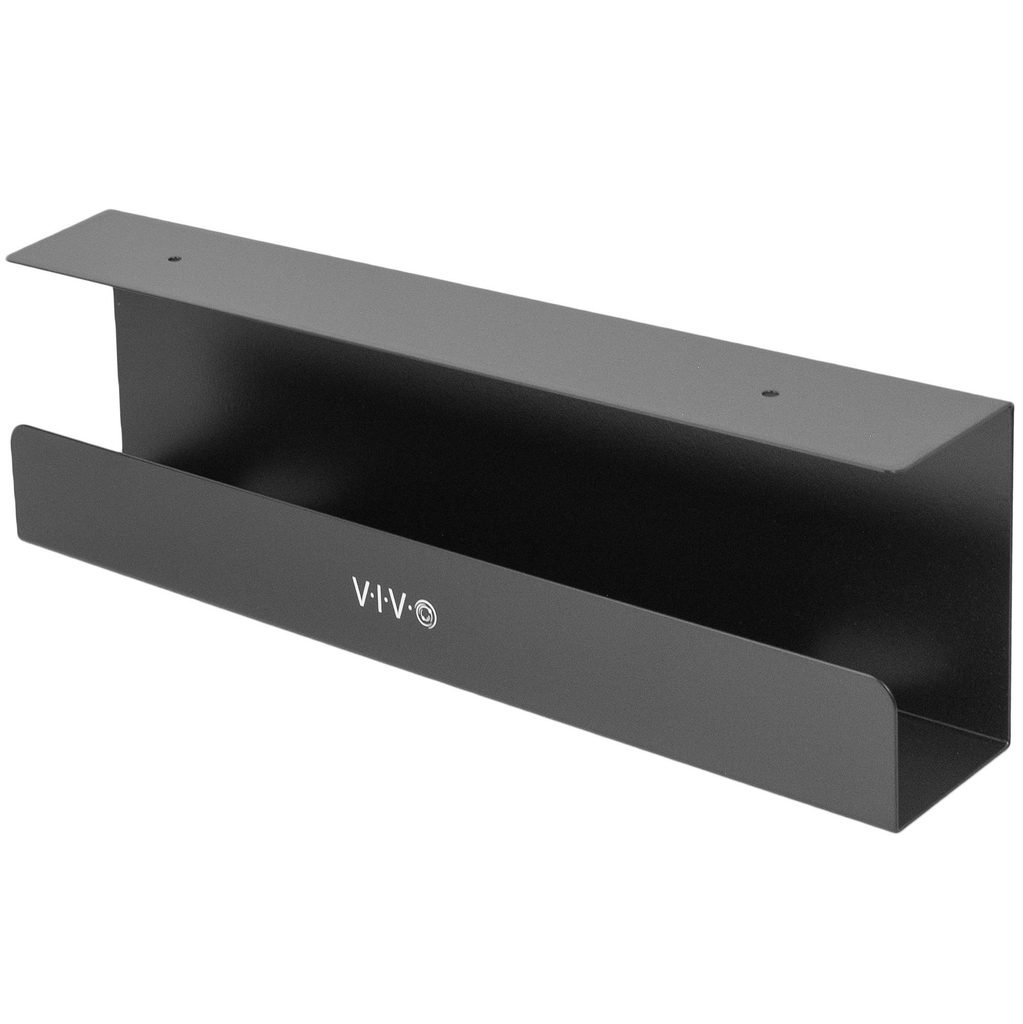
These attach directly to the underside of the desktop with screws.
They can provide a more permanent installation, but you’ll need to check the desk material and screw requirements before drilling. A thin desktop, glass surface or hollow-core construction may not be suitable.
One documented example is the VIVO DESK-AC06-1C Under Desk Cable Management Tray. The manufacturer specifies installation on wood or particleboard/MDF desks, a metal construction, dimensions of 16.5 × 3 × 4.5 inches per tray, and an 11-pound weight capacity.
The mounting holes are 11 inches apart, so check the supplied assembly instructions before marking your desktop.
What to check before buying a tray
- Desk thickness: Confirm that your desktop falls within the manufacturer’s stated range.
- Edge shape: Check whether the clamp needs a flat edge or can work around a desk frame.
- Under-desk clearance: Make sure the tray won’t interfere with your knees, drawers or other accessories.
- Weight capacity: Include the power strip, adapters, and other items you intend to place inside.
- Tray dimensions: Check both length and width. A tray that looks large in product photos may not fit your actual setup.
- Cable access: Look for openings that allow cables to enter and leave without sharp bends.
A useful example: if your desk has a thick rear support beam, a clamp may not reach the desktop properly even when the advertised thickness range appears suitable.
Measure the actual mounting area, not just the overall desk thickness.
Adhesive Cable Clips: Best for Individual Wires
Cable clips hold individual wires against the underside or rear of a desk. They’re useful for preventing charging cables, keyboard wires, and monitor connections from dropping behind furniture.
Unlike trays, they don’t create a storage compartment. Their main purpose is to guide cables along a planned route.
What makes a good cable clip?
Look for:
- A slot that matches the cable diameter.
- Adhesive suitable for the intended surface.
- A design that allows cables to be removed when needed.
- Optional screw mounting if you want a more permanent installation.
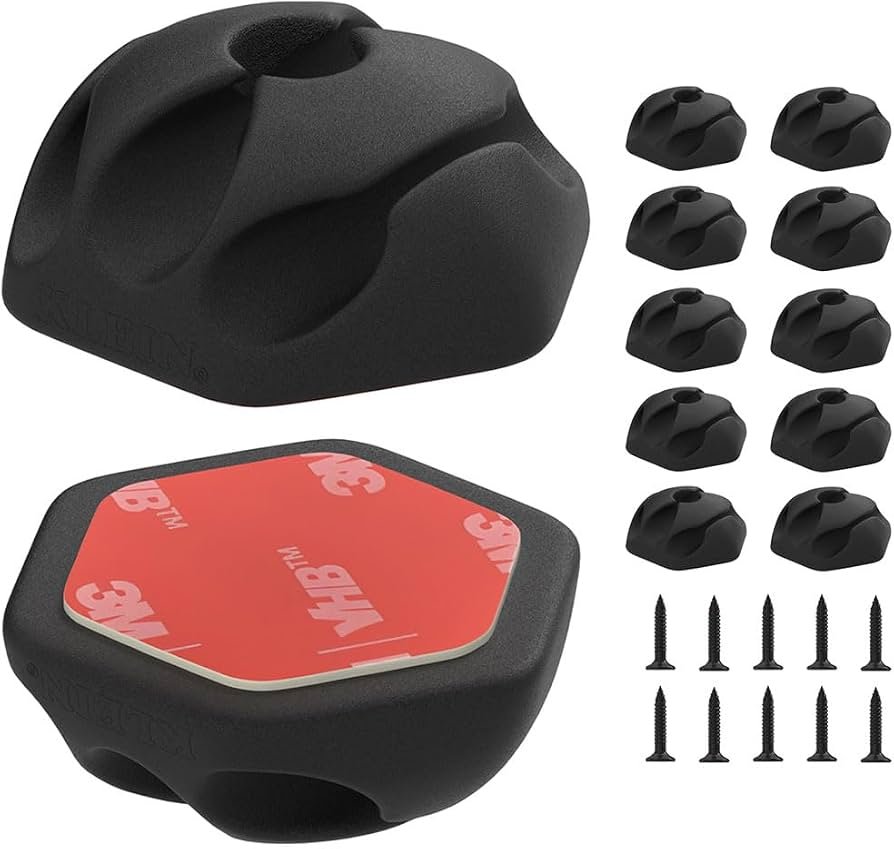
One verifiable option is the Klein Tools 450-410 Self-Adhesive Cable Mounting Clips, 3-Slot (10-Pack).
Each clip has three cable slots and measures approximately 1.3 × 1.3 × 0.58 inches. The manufacturer lists rubber, adhesive, and steel screws as materials and includes optional screws for permanent mounting.
Klein also recommends cleaning the surface with an alcohol wipe, allowing it to dry, and pressing the clip firmly for 10 seconds. Maximum adhesive strength is reached after 24 hours.
When should you avoid adhesive clips?
Adhesive mounting isn’t suitable for every desk.
Dusty, oily, textured, or uneven surfaces can reduce adhesion. The underside of some desks also has coatings or finishes that may not work well with adhesive products.
If you frequently rearrange your equipment or expect to move cables, removable clips or screw-mounted alternatives may be more practical.
Cable Sleeves: Best for Bundling Multiple Wires
A cable sleeve gathers several cables into one bundle. It is especially useful for the section running from your desktop down to a computer, monitor, or nearby power outlet.
For example, imagine three monitor cables and two USB cables hanging behind your desk. Instead of leaving them as separate wires, you can group them inside one sleeve.
Choose the right sleeve size
Sleeves are available in different diameters, lengths, and materials.
Some slide over cables from one end, while split or hook-and-loop designs allow you to wrap an already-connected cable bundle.
The Klein Tools 450-320 Cable and Wire Management Sleeve is one documented example.
Its specifications include:
- 3-foot length.
- 1.25-inch maximum inside diameter.
- Neoprene material.
- Adjustable hook-and-loop closure.
- Reusable construction.
- Two sleeves per pack.
The sleeve can be cut shorter if needed, according to the manufacturer.
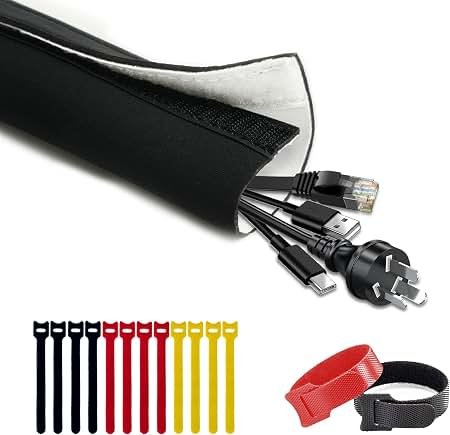
A smaller sleeve may be sufficient for a few USB and display cables. A larger one is more appropriate for several thick cables grouped together.
Don’t force an oversized bundle into a sleeve that is too narrow. You should be able to add or remove cables without struggling with the closure.
Check access before bundling
If you regularly disconnect devices, choose a sleeve that opens along its length.
A permanently closed sleeve can make it harder to identify individual cables or replace one connection without disturbing the entire bundle.
If you’re adding or replacing USB-C cables, check their charging and data capabilities before choosing a cable for your desk setup. Choosing the right USB-C cable
Cable Ties and Mounting Accessories
Cable ties and mounting bases are useful for finishing a cable-management setup.
Reusable hook-and-loop ties are particularly practical because you can open them and add another cable later.
Adhesive mounting bases can keep bundles attached to the underside of a desk, while screw-mounted bases provide another option when a more permanent attachment is appropriate.
Avoid tightening cable ties excessively. Cables should remain in their intended shape, without unnecessary pressure or sharp bends.
For everyday desk use, reusable ties are generally easier to maintain than disposable zip ties.
Which Mounting Method Is Right for Your Desk?
Your desktop material and construction should determine the mounting method.
| Desk type | Suitable approach | What to check |
|---|---|---|
| Solid wood | Clamp or screw mount | Screw length and drilling position |
| Particleboard/MDF | Compatible clamp or manufacturer-approved screws | Material strength and mounting instructions |
| Glass | Compatible padded clamp only if explicitly supported | Clamp design and manufacturer approval |
| Metal frame desk | Clamp or frame-compatible mounting | Frame clearance and edge shape |
| Hollow-core desk | Compatible clamp or surface-specific alternative | Whether the mounting area can support the attachment |
Don’t assume that a product fits every desk simply because its listing says universal.
A clamp designed for a flat desktop edge may not work around a thick frame, angled support or raised rear section.
For screw-mounted products, check the screw length against the actual desktop thickness. Never drill through the desktop surface.
If the manufacturer doesn’t specify compatibility with your desk construction, contact the manufacturer before installation.
Weight Limits: How Much Can a Cable Tray Hold?
Weight capacity is an important specification, especially when you’re storing a power strip and several adapters.
Here are two manufacturer-documented examples:
| Product | Mounting | Published capacity |
|---|---|---|
| VIVO DESK-CM6L-B | Clamp-on | 11 lb |
| VIVO DESK-AC06-1C | Screw-mounted | 11 lb |
These are manufacturer specifications, not independent load-test results.
Don’t treat the published capacity as a reason to fill the tray to its maximum. Leave some margin, distribute items appropriately, and follow the product’s installation instructions.
Also remember that the desk itself has its own limitations. A tray’s rated capacity doesn’t establish that every desktop can safely support that load.
Ventilation and Cable Access Matter
A cable tray should organize equipment without making it unnecessarily difficult to inspect or access.
Look for open designs or cable-routing openings that allow you to reach connections and keep equipment accessible.
Avoid tightly packing power adapters together or enclosing them in a way that blocks their designed ventilation openings.
If a power adapter or charger becomes unusually hot, investigate the equipment and its placement rather than assuming that a cable-management accessory will solve the problem.
A tray is an organizational product. It should not be treated as an electrical safety device.
Keep cables away from moving desk mechanisms, sharp edges, and areas where they can become pinched.
Common Cable Management Buying Mistakes
Buying before measuring
A tray may fit the advertised desktop thickness but still collide with a drawer, support beam or monitor arm.
Measure the available mounting area and check the full product dimensions.
Choosing a tray without checking its mounting hardware
Some products require screws, while others use clamps. The installation method can determine whether the organizer is suitable for your desk.
Using adhesive clips on unsuitable surfaces
Adhesive products depend on surface condition and correct application. Read the manufacturer’s preparation and curing instructions.
Ignoring cable length
A tray doesn’t automatically solve excess cable length. Plan where extra cable will sit and how much slack is needed when moving a monitor or adjusting a standing desk.
Bundling everything together
Keeping every cable inside one large sleeve can make troubleshooting difficult. Group cables logically so you can identify and replace individual connections.
Ignoring ventilation
Don’t use a cable sleeve or enclosure as an excuse to tightly pack power adapters or block their ventilation openings.
Retractable USB-C cables can help reduce loose cord when charging occasionally, but a conventional cable is usually more practical for a permanent desk setup. Retractable USB-C cables
Who Should Buy Each Type?
Buy a cable tray if:
- You have several devices connected to your desk.
- You want to store a power strip and adapters underneath.
- You have enough mounting clearance.
- Your desktop supports the selected mounting method.
Buy cable clips if:
- You mainly want to guide individual wires.
- Charging cables keep falling behind the desk.
- You want a small, inexpensive organizational solution.
- Your mounting surface is compatible with the adhesive.
Buy a cable sleeve if:
- Several cables travel along the same route.
- You want to conceal a hanging cable bundle.
- You need a reusable way to group wires.
- You can choose a suitable diameter.
Skip a large tray if:
- You only have one or two cables.
- Your desk has no compatible mounting area.
- A tray would interfere with your legs or drawers.
- Your setup changes frequently and needs unrestricted cable access.
Alternatives to a Traditional Cable Tray
If a conventional tray doesn’t fit your desk, consider these alternatives:
- Under-desk cable baskets: Useful for desks with compatible frame structures or mounting arrangements.
- Desk-frame cable holders: A practical option for some standing desks with exposed support rails.
- Adhesive cable channels: Useful for guiding wires along the underside or rear of a desk.
- Reusable cable ties: Suitable for small bundles that don’t require a full enclosure.
Always verify the mounting method and compatibility for the exact product before ordering.
Frequently Asked Questions
What is the best under-desk cable management solution?
For a multi-device home office, a clamp-on cable tray combined with cable clips and a sleeve is a practical starting point. For a simpler setup, clips alone may be enough.
Are clamp-on cable trays better than screw-mounted trays?
Neither is universally better. Clamp-on trays avoid drilling and are easier to reposition, while screw-mounted trays offer a more permanent attachment when the desktop material and installation instructions support it.
Can I install a cable tray on a glass desk?
Only if the manufacturer explicitly approves the exact mounting method for that desk construction. Don’t assume that a padded clamp is automatically suitable for every glass desktop.
How do I choose the right cable sleeve size?
Measure the combined cable bundle at its widest point. Select a sleeve with enough room to close comfortably and allow for future additions.
Do cable trays need ventilation?
Choose a design that doesn’t unnecessarily restrict airflow around power adapters. Avoid tightly enclosing equipment or blocking its designed ventilation openings.
Can adhesive cable clips be removed?
Some adhesive products are designed for removal, but the process and surface compatibility vary. Follow the manufacturer’s removal instructions to reduce the risk of surface damage.
Final Verdict: Build a Setup That Fits Your Desk
The best under-desk cable management setup isn’t necessarily the one with the most accessories.
For most multi-device desks, start with a compatible cable tray to organize the power strip and adapters. Add clips to guide individual cables and use a sleeve to group wires running toward your computer or power source.
If you have a simple laptop setup, you may only need a few clips and a reusable sleeve.
Before ordering, measure your desktop, check the installation method, confirm the weight limit, and make sure the organizer won’t interfere with your everyday workspace.
A little planning can make your desk easier to maintain without buying more accessories than you actually need.
| Check Price >> VIVO Clamp-on Cable Management Tray | Check Price >> VIVO Extra Deep Under Desk Cable Management Tray |
Sources & Verification URLs
- VIVO DESK-CM6L-B: Official Product Page
- VIVO DESK-AC06-1C: Official Product Page
- Klein Tools 450-410: Official Product Page
- Klein Tools 450-320: Official Product Page
- StarTech Cable Tray: Official Product Page