Replacing a laptop charger starts with the computer’s requirements, not a “65W” or “100W” badge. A replacement can have enough advertised power yet use the wrong charging connection, lack a required output profile or lose too much laptop power when another port is occupied.
This checklist is for choosing a replacement USB-C laptop charger. It uses official documentation and illustrative examples; BuyZivo has not physically tested a charger for this article. For an explanation of certification marks, read our separate fast charger safety guide.
Quick Answer
Confirm that your exact laptop accepts USB-C charging, identify the recommended adapter output, and match the charger’s documented port profiles and cable rating. Verify the exact charger model’s claimed safety evidence and buy from a traceable seller. If any essential requirement is missing, resolve it before ordering.
Step 1: Identify the Laptop and Charging Port
Use the full laptop model or manufacturer product identifier to find its manual. A brand or product-family name is not enough: different configurations can have different charging requirements. Check which connector accepts charging and whether USB-C is supported for your intended use.
- Record the exact laptop model.
- Find the charging-capable port in the manual.
- Record the recommended adapter wattage and supported charging profiles.
- Check whether a proprietary adapter is needed for full performance or a specific fast-charging mode.
A USB-C socket used for data does not, by its shape alone, establish that the laptop accepts power through it. If the manufacturer documents a different connection, do not assume a USB-C adapter and a conversion cable are a supported substitute.
Step 2: Match the Output Profile
Wattage describes power, but voltage and current matter together. As an arithmetic example, 20V at 3.25A equals 65W. This is not a requirement for every 65W laptop; use the profiles stated for your computer and the replacement charger.
For a compatible USB PD setup, the device and source negotiate a supported power level. A larger maximum rating does not mean that maximum is continuously delivered to the battery. Read USB Power Delivery explained if the output table is unfamiliar.
Apple’s Mac power-adapter guidance says USB-C charging Macs can use USB PD adapters and recommends at least the model’s recommended minimum wattage for the best charging experience. This is Mac-specific guidance; consult the relevant manufacturer for another laptop.
Step 3: Check the Port Mode You Will Actually Use
If you charge only a laptop, inspect that USB-C port’s single-device output. If a phone will also be connected, inspect the exact two-port combination. A total-output label cannot answer both questions.
For example, a hypothetical charger might supply 65W to a laptop when used alone but reduce that port to 45W with a phone connected. The 65W headline would not describe your everyday two-device setup. These numbers illustrate a buying check, not a product test.
Use our USB-C charger power-sharing guide to read combination charts. Choose based on the mode you regularly use, including a third device if it will remain connected.
Step 4: Match the Cable
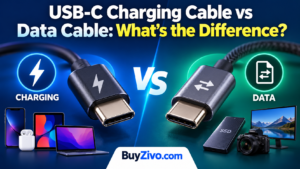
Use a cable rated for the required power and connection. A 60W-rated cable does not cover a connection requiring more than 60W. For a new certified USB-C-to-USB-C cable above that level, check the 240W power marking and the manufacturer’s specifications.
USB-IF’s cable guidance specifies 60W or 240W power markings within its certification program. A cable rating does not increase the charger’s output or establish data and display performance. For operation above 100W, confirm the necessary EPR capabilities across the charger, cable and receiving device.
Do not discard an existing correctly specified cable merely because a newer label exists. Check its documented capability and condition. A USB-C-to-MagSafe cable or a captive cable needs its own manufacturer compatibility check; the USB-C-to-USB-C marking rule should not be applied indiscriminately.
Step 5: Verify the Exact Product and Seller
Record the charger model from the listing, product label and official specification sheet. Check the plug variant and intended sales region as well. Similar-looking products or regional variants may have different documentation.
If UL certification is claimed, UL explains how an identifier or file number can be checked in Product iQ. Compare the record with the product you are buying rather than assuming a logo proves the claim. Use the issuing organization’s records for other certification claims.
USB compliance evidence and electrical-safety evidence answer different questions. The general safety guide explains those differences; this checklist does not certify a charger. If a claimed record cannot be matched, ask the manufacturer for clarification before relying on it.
- Check the seller’s identity and return process.
- Confirm that the delivered model will match the documented one.
- Check the manufacturer’s service or warranty route.
- Review relevant official recall notices for the exact model.
- Keep the invoice and specification sheet for reference.
Your Pre-Purchase Record
| Write down | Where to confirm it | If it is unclear |
|---|---|---|
| Laptop model and charging port | Laptop manual or support page | Ask the laptop manufacturer |
| Recommended input and profiles | Manufacturer charging guidance | Do not substitute a generic wattage recommendation |
| Replacement charger model and port output | Official adapter documentation | Request the full output table |
| Output with your other devices connected | Power-allocation chart | Confirm the intended combination |
| Cable capability | Cable markings and specifications | Use a known-compatible, correctly rated cable |
| Claimed certification and seller details | Issuer records and seller documentation | Resolve the mismatch before purchase |
After Delivery: Check Before Depending on It
Compare the delivered label, model and cable with what you ordered. Follow the manufacturer’s setup instructions and initially check the laptop by itself before adding other devices. A charging indicator confirms charging has started; it does not demonstrate maximum sustained power or establish electrical safety.
If charging is intermittent, isolate the cable and adapter with known-compatible equipment using the laptop manufacturer’s troubleshooting steps. Apple’s USB-C adapter troubleshooting guidance advises stopping use of a cable that works only when moved, and explains that adapters can become warm during normal use. It recommends ventilation and avoiding heat-trapping surfaces.
Do not continue using damaged equipment or attempt a home repair of a mains adapter. Persistent shutdowns, damaged insulation, a scorched connector or an abnormal smell need assessment. Follow manufacturer service guidance rather than assuming every interruption means you need a higher-wattage replacement.
Frequently Asked Questions
Can a higher-wattage charger replace the original?
It can be suitable when the laptop supports the connection and the charger supplies compatible profiles, with a suitable cable and applicable safety compliance. The larger wattage number alone is not enough.
Can I use a lower-wattage charger temporarily?
Check the laptop manufacturer’s guidance. Some supported setups may charge more slowly or fail to keep up with the operating workload. Do not treat temporary charging as proof that it meets the recommended replacement requirement.
Do I need PPS for a laptop?
Only if the laptop’s documented charging requirement calls for it. Do not use a phone’s PPS requirement as a universal rule for laptops; match the actual profiles.
Is a 240W cable a reason to buy a 240W charger?
No. The cable rating is a capability limit. Choose the adapter to match your laptop and simultaneous-device needs, not the cable’s largest number.
What if the certification record or model does not match?
Ask the manufacturer or issuing organization to resolve the discrepancy. Do not treat a record for a similar model as verification of the item being sold.
Buying Decision
Buy when the charging connection, output profiles, intended port combination, cable and product documentation all match your requirements. Keep an existing adapter that already meets those needs and remains in suitable condition. If charging trouble is unresolved, diagnose the setup before paying for a replacement.
Sources and Research Basis
- Apple: Use a power adapter with your Mac — model-specific adapter guidance.
- Apple: USB-C adapter troubleshooting — cable checks, ventilation and service guidance.
- USB-IF: Cables and Connectors — certified cable power markings and capability limits.
- USB-IF: USB Charger (USB PD) — power negotiation and EPR overview.
- UL: Certification mark FAQ — identifier and file-number verification.
Checked on 9 October 2026. This is a documentation-based checklist, not hands-on electrical testing or a certification of any named adapter.